Windows开机自启Rclone
本文最后更新于 3 个月前
一、下载并安装Rclone
- 从 rclone官网 下载你所对应的版本。

解压到你认为合适的位置。
- 为rclone配置环境变量。
找到系统下面的系统信息。

打开环境变量。

找到Path这一栏打开。
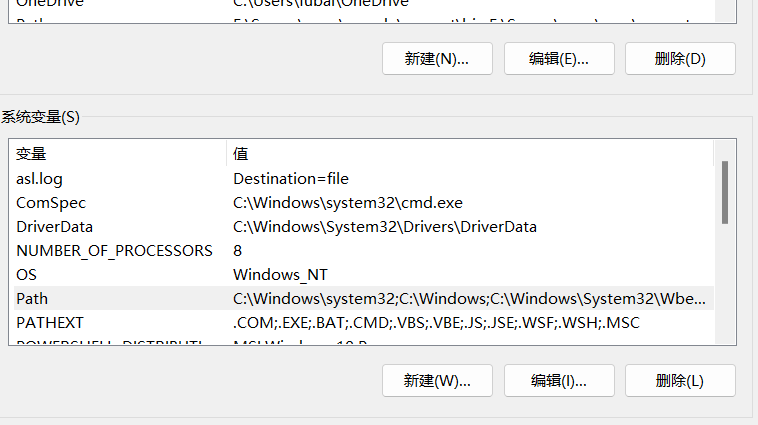
将你刚刚放rclone的文件夹添加进去,例如 D:\rclone。
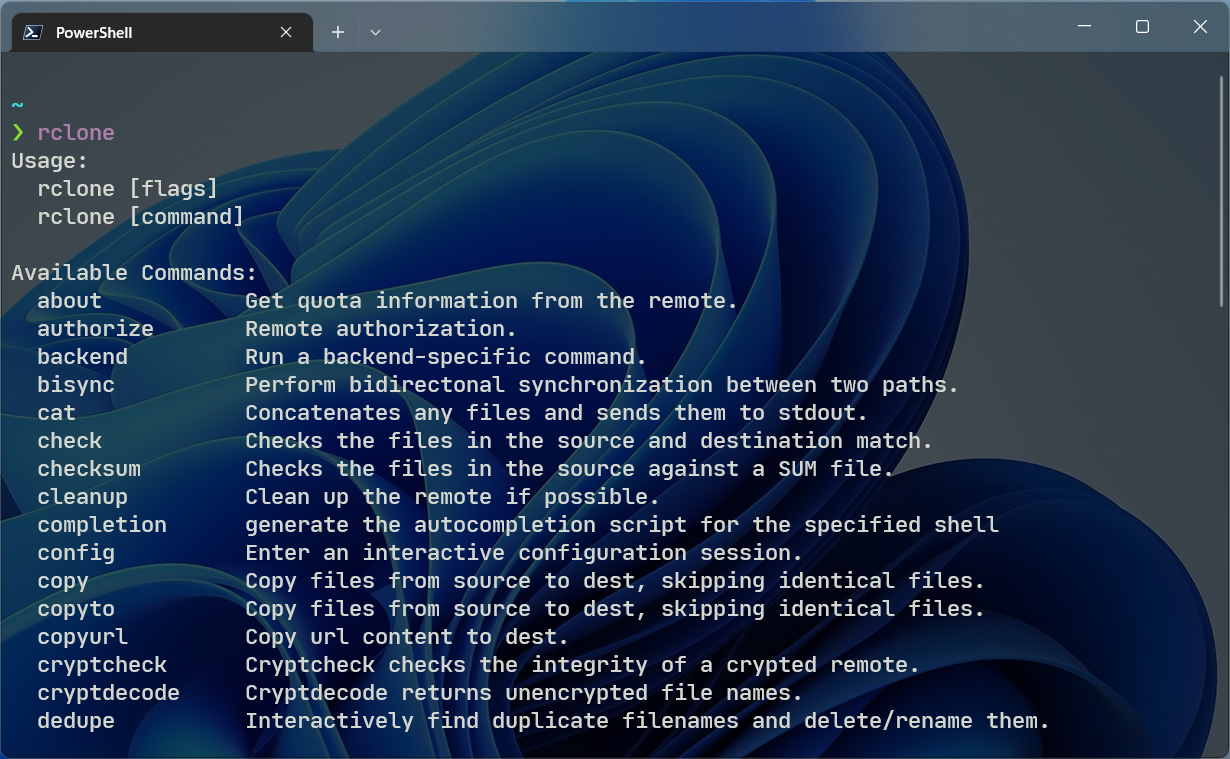
打开终端试试环境变量是否生效。
二、下载并安装WinFsp
Windows系统下还需要安装WinFsp,rclone才能正常使用。
WinFsp 官网下载,按照指示一路下一步即可。
三、配置你的网盘
接下来需要配置rclone,在终端输入以下命令进行配置:
rclone config输入 n 即为新建配置。
e/n/d/r/c/s/q> n
name> onedrive # 随意,要记住待会儿要用
Option Storage.
Type of storage to configure.
Choose a number from below, or type in your own value.
1 / 1Fichier
\ (fichier)
2 / Akamai NetStorage
\ (netstorage)
3 / Alias for an existing remote
\ (alias)
4 / Amazon Drive
\ (amazon cloud drive)
5 / Amazon S3 Compliant Storage Providers including AWS, Alibaba, Ceph, China Mobile, Digital Ocean, Dreamhost, IBM COS, Lyve Cloud, Minio, Netease, RackCorp, Scaleway, SeaweedFS, StackPath, Storj, Tencent COS and Wasabi
\ (s3)
6 / Backblaze B2
\ (b2)
7 / Better checksums for other remotes
\ (hasher)
8 / Box
\ (box)
9 / Cache a remote
\ (cache)
10 / Citrix Sharefile
\ (sharefile)
11 / Compress a remote
\ (compress)
12 / Dropbox
\ (dropbox)
13 / Encrypt/Decrypt a remote
\ (crypt)
14 / Enterprise File Fabric
\ (filefabric)
15 / FTP Connection
\ (ftp)
16 / Google Cloud Storage (this is not Google Drive)
\ (google cloud storage)
17 / Google Drive
\ (drive)
18 / Google Photos
\ (google photos)
19 / Hadoop distributed file system
\ (hdfs)
20 / Hubic
\ (hubic)
21 / In memory object storage system.
\ (memory)
22 / Jottacloud
\ (jottacloud)
23 / Koofr, Digi Storage and other Koofr-compatible storage providers
\ (koofr)
24 / Local Disk
\ (local)
25 / Mail.ru Cloud
\ (mailru)
26 / Mega
\ (mega)
27 / Microsoft Azure Blob Storage
\ (azureblob)
28 / Microsoft OneDrive
\ (onedrive)
29 / OpenDrive
\ (opendrive)
30 / OpenStack Swift (Rackspace Cloud Files, Memset Memstore, OVH)
\ (swift)
31 / Pcloud
\ (pcloud)
32 / Put.io
\ (putio)
33 / QingCloud Object Storage
\ (qingstor)
34 / SSH/SFTP Connection
\ (sftp)
35 / Sia Decentralized Cloud
\ (sia)
36 / Storj Decentralized Cloud Storage
\ (storj)
37 / Sugarsync
\ (sugarsync)
38 / Transparently chunk/split large files
\ (chunker)
39 / Union merges the contents of several upstream fs
\ (union)
40 / Uptobox
\ (uptobox)
41 / Webdav
\ (webdav)
42 / Yandex Disk
\ (yandex)
43 / Zoho
\ (zoho)
44 / http Connection
\ (http)
45 / premiumize.me
\ (premiumizeme)
46 / seafile
\ (seafile)
Storage> 28 # 根据你要挂载的网盘进行选择
Option client_id.
OAuth Client Id.
Leave blank normally.
Enter a value. Press Enter to leave empty.
client_id> # 留空
Option client_secret.
OAuth Client Secret.
Leave blank normally.
Enter a value. Press Enter to leave empty.
client_secret> # 留空
Option region.
Choose national cloud region for OneDrive.
Choose a number from below, or type in your own string value.
Press Enter for the default (global).
1 / Microsoft Cloud Global
\ (global)
2 / Microsoft Cloud for US Government
\ (us)
3 / Microsoft Cloud Germany
\ (de)
4 / Azure and Office 365 operated by 21Vianet in China
\ (cn)
region> 1 # 根据自己的情况选择,不确定就选1
Edit advanced config?
y) Yes
n) No (default)
y/n>接着就会跳转浏览器进行授权,登录你的网盘账号即可。


继续往下:
Press Enter for the default (onedrive).
1 / OneDrive Personal or Business
\ (onedrive)
2 / Root Sharepoint site
\ (sharepoint)
/ Sharepoint site name or URL
3 | E.g. mysite or https://contoso.sharepoint.com/sites/mysite
\ (url)
4 / Search for a Sharepoint site
\ (search)
5 / Type in driveID (advanced)
\ (driveid)
6 / Type in SiteID (advanced)
\ (siteid)
/ Sharepoint server-relative path (advanced)
7 | E.g. /teams/hr
\ (path)
config_type> 1
Drive OK?
Found drive "root" of type "business"
URL: https://iginsing-my.sharepoint.com/personal/xxxxxxxx/Documents
y) Yes (default)
n) No
y/n> # 回车
--------------------
[onedrive]
type = onedrive
token = {"access_token":xxxxx}
drive_id = xxxxxxxxxx
drive_type = business
--------------------
y) Yes this is OK (default)
e) Edit this remote
d) Delete this remote
y/e/d> # 回车
Current remotes:
Name Type
==== ====
onedrive onedrive输入 q 回车退出配置。
四、挂载网盘到本地
在终端中输入:
rclone mount onedrive:/ X: --cache-dir F:\OneDrive --vfs-cache-mode writes &mount 后面第一个参数是你最开始输入的name,:/ 即为挂载网盘的根目录,可自行更改。第二个参数为你要挂载到本地的路径,我这里是挂载到了 X 盘。--cache-dir 是指定缓存目录,当你每次想往挂载的网盘写文件时都会先在缓存路径copy一份慢慢进行上传,所以要注意缓存路径的空间大小是否够用。--vfs-cache-mode 即为VFS缓存的模式,更多信息请参考 VFS File Caching,& 即为后台运行。


五、编写开机自启脚本
将刚才挂载网盘的命令复制到一个空白文本文件里,将文本文件扩展名改为 bat。
rclone mount onedrive:/ X: --cache-dir F:\OneDrive --vfs-cache-mode writes &
再新建一个文本文件输入以下命令,将扩展名改为 vbs,并将其放入 C:\ProgramData\Microsoft\Windows\Start Menu\Programs\Startup 中,开机即会执行此脚本,实现开机挂载网盘到本地 X 盘。
CreateObject("WScript.Shell").Run "cmd /c D:/rclone.bat",0其中 D:/rclone.bat 即为上面创建的bat文件路径,请根据自身情况更改。
- OωO
- |´・ω・)ノ
- ヾ(≧∇≦*)ゝ
- (☆ω☆)
- (╯‵□′)╯︵┴─┴
-  ̄﹃ ̄
- (/ω\)
- ∠( ᐛ 」∠)_
- (๑•̀ㅁ•́ฅ)
- →_→
- ୧(๑•̀⌄•́๑)૭
- ٩(ˊᗜˋ*)و
- (ノ°ο°)ノ
- (´இ皿இ`)
- ⌇●﹏●⌇
- (ฅ´ω`ฅ)
- (╯°A°)╯︵○○○
- φ( ̄∇ ̄o)
- ヾ(´・ ・`。)ノ"
- ( ง ᵒ̌皿ᵒ̌)ง⁼³₌₃
- (ó﹏ò。)
- Σ(っ °Д °;)っ
- ( ,,´・ω・)ノ"(´っω・`。)
- ╮(╯▽╰)╭
- o(*////▽////*)q
- >﹏<
- ( ๑´•ω•) "(ㆆᴗㆆ)
- 😂
- 😀
- 😅
- 😊
- 🙂
- 🙃
- 😌
- 😍
- 😘
- 😜
- 😝
- 😏
- 😒
- 🙄
- 😳
- 😡
- 😔
- 😫
- 😱
- 😭
- 💩
- 👻
- 🙌
- 🖕
- 👍
- 👫
- 👬
- 👭
- 🌚
- 🌝
- 🙈
- 💊
- 😶
- 🙏
- 🍦
- 🍉
- 😣


